Troubleshooting guide
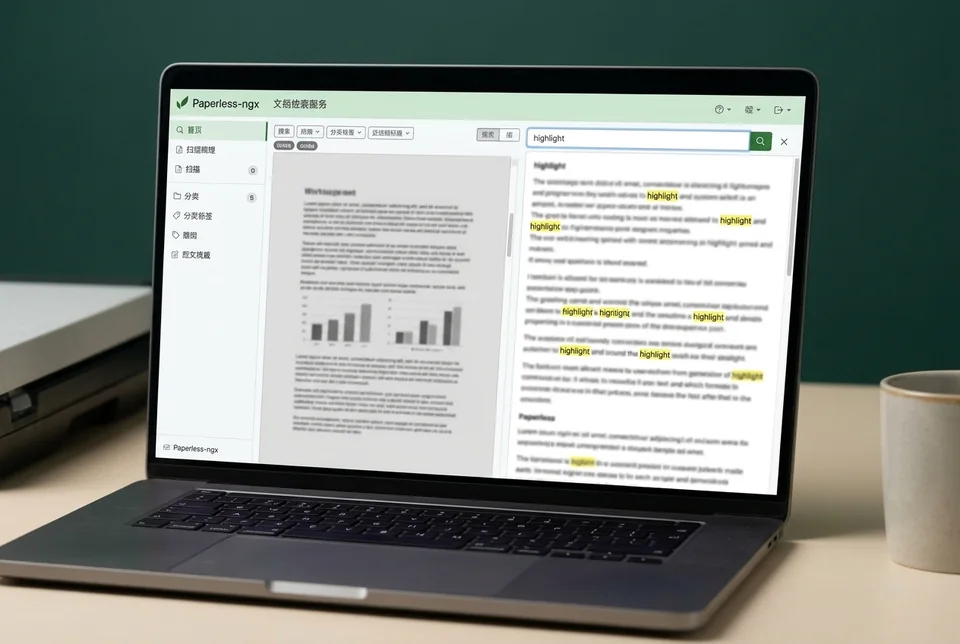
Paperless-ngx PDF Not Indexed: Diagnose an Empty OCR Text Layer
Category: Document Workflow
You imported a PDF into Paperless-ngx Docker with a watched volume, but the document opens with no searchable text and you are stuck at the OCR produces an empty document step.
Check the OCR language and image content
Open the document in Paperless-ngx and confirm the OCR language under the document’s metadata matches the PDF’s actual language. A mismatch often yields an empty text layer. Next, download the original PDF and open it in a PDF viewer. If the pages are pure images with no selectable text, OCR must run. If the pages are blank or nearly blank scans, OCR will correctly produce nothing. Also check the consume log for lines like “OCR failed” or “no text found”; an empty result with no error usually points to image quality or language settings.
Verify Docker volume permissions and OCR runtime
From the host, run docker exec -it <container> ls -l /usr/src/paperless/consume and confirm the file is readable by the paperless user. Then run docker exec -it <container> ocrmypdf --version to confirm the OCR engine is installed. If either command fails, fix the volume mount or rebuild the container before retrying. A common cause of paperless ngx pdf not indexed is a PDF that OCRmyPDF skips because it believes a text layer already exists; test with ocrmypdf --redo-ocr input.pdf output.pdf on a copy to force OCR.
Verification test
Re-upload the same PDF after adjusting language or forcing OCR. Open the new document and use the search bar for a word you can see in the scan. If the word is found, indexing works. If not, inspect the consume log again for the exact OCR exit code.
Rollback and recovery
Keep the original PDF until verification passes. If a forced OCR run corrupts the file, delete the failed document in Paperless-ngx and re-import the untouched original from your watched volume. For deeper diagnosis,