Troubleshooting guide
Paperless-ngx OCR Not Working: Why Your PDF Imports With an Empty Text Layer
Category: Document Workflow
You’ve set up Paperless-ngx in Docker with a watched import volume, but the PDF arrives with no searchable text—this is the classic paperless ngx ocr not working symptom, and it usually means the OCR stage ran but produced nothing useful.
Check the OCR Language and Engine
First, confirm the container has an OCR language installed. Run docker exec -it <container> ocrmypdf --version and then tesseract --list-langs. If your document is English, eng must appear. If the list is empty or missing your language, OCR will silently return an empty layer. Add the correct language pack to your image or environment, then restart the container.
Verify File Permissions on the Watched Volume
Next, check that the consume process can read the file. Run docker exec -it <container> ls -l /usr/src/paperless/consume. The file should be readable by the paperless user. If permissions are wrong, OCR cannot open the source and the text layer stays blank. Fix ownership with chown on the host or adjust the volume mount.
Run a Controlled Verification Test
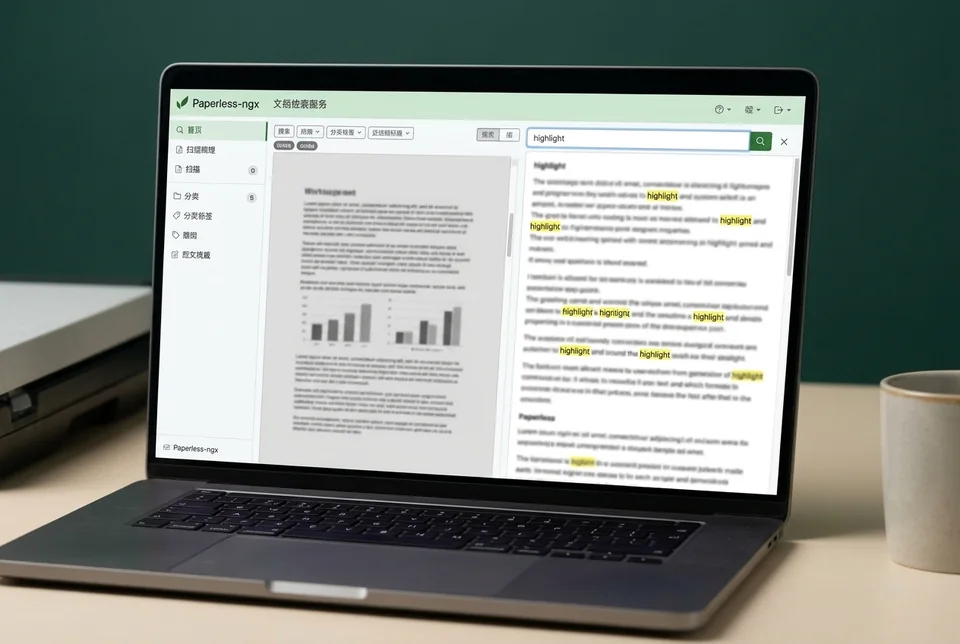
Create a simple scanned PDF with known text, drop it into the watched volume, and wait for import. Open the document and search for a word you know is in the scan. If the search finds it, OCR is working. If the text layer is still empty, the problem is in the OCR configuration, not the import.
Rollback and Recovery
Before changing language packs or permissions, back up your database and consume folder. If a change makes things worse, restore the backup and revert the Docker configuration to the last working state.
If these checks don’t restore OCR,
Ask for help with your container logs and test file details.